


Universal Tv Remote-Cast to TV
4.31.07K Reviews
App Specs
- Version
- 7.0.1
- Updated On
- License
- Free
- Downloads
- 50,000,000+
- Developer
- One Music Player
- Categories
- House & Home
- Platform
- Android, iOS
Screenshots
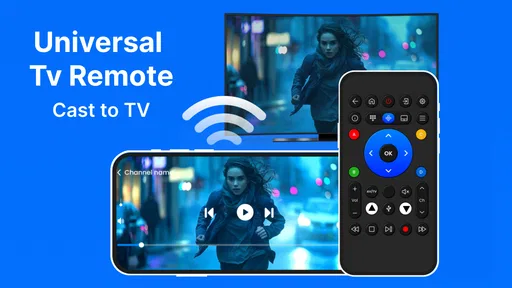
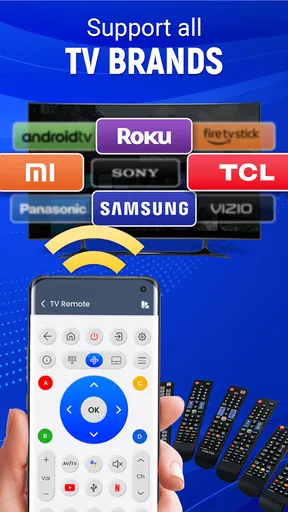
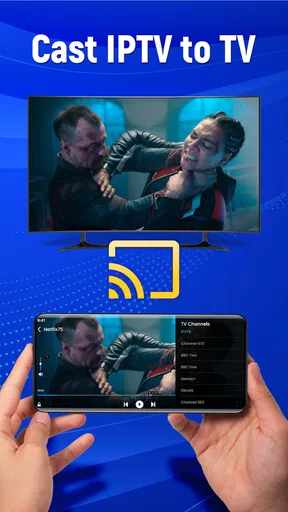
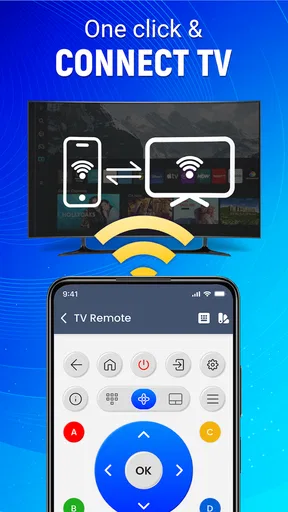
 Analysis by AppCompare
A phone-based TV controller sounds like an easy fix when the remote disappears, but it is only useful if it can connect to your particular television and do the jobs you actually need. That is the decision I would make before installing Universal TV Remote-Cast to TV: treat it as a possible backup for everyday control, not as a guaranteed replacement for every manufacturer’s remote.
That distinction matters because a universal remote app has two separate roles. It may offer controls for a television, and it may help send media from a phone to a larger screen. Those tasks can depend on different connection methods and device compatibility, so success with one should not be taken as proof that the other will work the same way.
Check the fit before making it your main remote
I would start by checking whether the app can discover or pair with the TV you want to use, then test the basic controls before relying on it for guests or a movie night. A phone app cannot help much if the TV is off the network, the phone is on a different connection, or the television does not respond to the chosen setup. Keeping the original remote nearby during the first test is sensible, especially if you need to reach the TV’s settings or reconnect it.
It is also worth deciding what “remote” means in your household. If you mainly need to change channels or adjust volume, a simple phone control may be enough. If your routine depends on a particular brand’s menus, input switching, or specialized buttons, check those actions early rather than assuming a universal layout will cover them all. I would test the buttons I use most, not just whether the app connects.
Where phone control can be genuinely handy
The strongest case for this kind of app is a practical one: your usual remote is missing, its batteries have run out, or you want to control the TV while your phone is already in hand. It can also be useful in a shared room where several people take turns choosing what to watch. Instead of searching under cushions, one person can use the phone to handle a quick adjustment while someone else keeps the original remote in a drawer or on a shelf.
There is a useful distinction between a temporary backup and a household’s permanent control system. A phone is a convenient spare, but it is also the device you may need for messages, calls, or other tasks. If you are watching for a long stretch, you may prefer a physical remote that stays ready and does not depend on your phone’s battery or attention. I would keep both options available rather than throwing away a working remote after a successful first connection.
For casting, I would begin with one harmless test, such as a photo you are comfortable showing on the TV, before trying a longer video. That helps you check whether the phone and screen are communicating as expected and gives you a chance to learn the workflow without interrupting a planned watch. It is a small step, but it avoids discovering a connection problem only after everyone is waiting to see something.
Worth Reading Before You Choose

EA SPORTS FC Mobile 26 Is a Bigger Football Game, but It Takes Time

Flipboard Shows What News Apps Must Do Beyond the Feed

Switching to Android Auto Means Rethinking Your Driving Routine

Google Calendar Makes a Crowded Week Easier to Manage

Ludo King Makes the Most of the Minutes Between Plans

Baby Panda World Brings Quick Play to Modern Phones, but Its Game Library Feels Busy
Getting Started with Universal TV Remote
First things first, let’s talk about getting set up. The app is available for both Android and iOS, which is a big win in my book. Downloading and installing it is as straightforward as it gets – just head over to the Google Play Store or the App Store, search for Universal TV Remote-Cast to TV, and hit download. Easy peasy!
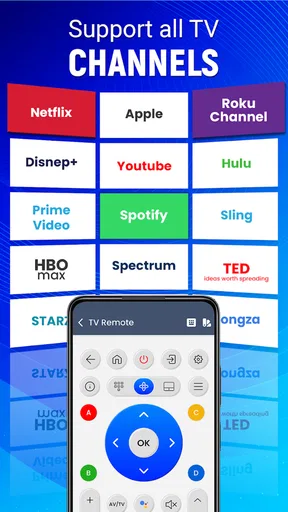
Once you've got it on your phone, the setup process is pretty intuitive. The app guides you through a few simple steps to pair your device with your TV. Most major brands are supported, so whether you’re rocking a Samsung, LG, or even a Sony, you’re likely good to go. And for those of you with smart TVs, connecting via Wi-Fi makes everything even smoother.
Features That Make Life Easier
Now, let’s dive into what makes this app so useful. One of my favorite features has to be the customizable remote layout. You can tweak the layout to suit your preferences, so you’re not stuck with buttons you never use. I mean, who wants a button for switching to teletext in 2023?
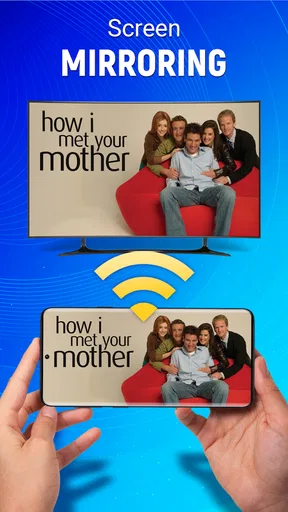
Another cool feature is the ability to cast media directly from your phone. Whether it's vacation photos or a funny video you’ve got stored, sending it to the big screen is just a tap away. It’s like having your own personal media hub right in your pocket.
And let’s not forget about voice control. Yeah, you can literally tell your TV what to do. Feeling lazy? Just say "turn off the TV" or "play next episode" and voilà, it listens. It’s like having a personal assistant dedicated to binge-watching.
Real World Use and Final Thoughts
So, how does it hold up in real life? Pretty well, actually. The response time is quick, and the app rarely glitches or crashes. It's a lifesaver when you can’t find the original remote or if you simply want to impress guests with a bit of modern magic.
However, I did notice that the app can drain your phone’s battery a bit faster than usual if you're using it for extended periods. But hey, that’s a small price to pay for such convenience, right?
The app is free to install, and its Everyone age rating makes it suitable for a broad household audience. It comes from One Music Player, has an average rating of about four-point-two from roughly eighty-six thousand ratings, and has been installed over ten million times. Its current version is 7.0.1, with Android 6.0 as the minimum requirement; in-app purchases range from under a dollar to just under a hundred dollars per item. I would regard those purchases as a reason to check the app’s screens carefully before committing to anything, not as a requirement for basic use.
In conclusion, Universal TV Remote-Cast to TV is a must-have app for anyone who loves their TV time. It’s practical, user-friendly, and adds a touch of futuristic flair to your home entertainment setup. So why not give it a whirl? You might just end up wondering how you ever lived without it.
How it compares with other ways to control a TV
Compared with a television maker’s own remote app, a universal controller has an appealing aim: one place to try for control across different sets rather than switching between brand-specific tools. That can be a better fit if you have more than one television from different makers, or if you want to try a common phone interface before learning a new one. The trade-off is that a manufacturer’s own app may be a more natural match for its own menus and settings. If a key function is missing or awkward here, the brand’s dedicated option or the physical remote may be the more dependable choice.
A physical universal remote is another category to consider. It does not occupy your phone or compete with its battery, and it can be easier for children or visitors to use without handing over a personal device. On the other hand, it is another object to find and keep available. I see this app as strongest when convenience and a spare control matter more than having a dedicated device always ready.
A small routine that can prevent frustration
In a realistic evening scenario, I might arrive home, set my phone down near the sofa, and use the app to switch the TV on or adjust playback while dinner is being finished. Before making that part of a routine, I would pair and test it at a quiet moment, save a layout centered on the controls I use, and make sure the phone has enough charge for the rest of the evening. That turns the app from a novelty into a useful fallback without making the whole plan depend on it.
If a connection fails, I would check the simple things first: whether the TV is powered and ready to communicate, whether the phone is on the same home network when using Wi-Fi, and whether another control method can still reach the television. Restarting the pairing process is more practical than repeatedly tapping an unresponsive button. I would also avoid assuming that a casting problem means remote control must fail, or the reverse; test those two jobs separately.
Who should choose it—and who should pass
I would recommend trying it if you want a backup for a compatible TV, like keeping controls on your phone, or expect to use both remote functions and casting. It may also suit someone who often misplaces the original remote and is comfortable checking a connection before relying on a phone. The app’s broad reach and free installation make a low-commitment trial reasonable, while the purchase options are worth reviewing with care if you encounter them.
I would skip it as a sole control method if you need a guaranteed physical button for every function, do not want to depend on a charged phone, or would rather avoid troubleshooting a network connection. It is also not the best choice if your TV’s special features are easier to manage through its own remote or dedicated software. In those cases, the original controller remains the straightforward option, and a separate universal remote may be a better fit for a shared household.
My practical recommendation is to install it only when you have the television in front of you, test the specific controls and casting task you care about, then decide whether it earns a place in your routine. The app is most convincing as a flexible backup and a handy phone-based option—not as a promise that every TV and every control workflow will behave identically. If it works well with your set, it can save a search through the sofa; if not, you have a clear reason to stick with the remote or choose a more tailored alternative.
Pros
- Easy to set up and use.
- Supports multiple TV brands.
- Intuitive user interface.
- Quick response time.
- Free basic features.
Cons
- Ads can be intrusive.
- Some features require payment.
- Limited compatibility with older TVs.
- Occasional connectivity issues.
- May drain battery quickly.
FAQs for Universal Tv Remote-Cast to TV
How do I set up Universal TV Remote-Cast to TV with my smart TV?
Setting up the Universal TV Remote-Cast to TV app is straightforward. First, ensure that both your smartphone and smart TV are connected to the same Wi-Fi network. Open the app, and it will automatically search for compatible devices. Select your TV from the list, and follow the on-screen instructions to complete the pairing process.
Is Universal TV Remote-Cast to TV compatible with all TV brands?
The Universal TV Remote-Cast to TV app supports a wide range of TV brands, including Samsung, LG, Sony, and more. However, compatibility may vary depending on the model and year of your TV. It's advisable to check the app's description or the developer's website for a comprehensive list of supported devices before downloading.
Can I use the app to control multiple TVs in my home?
Yes, Universal TV Remote-Cast to TV allows you to control multiple TVs, provided they are all compatible with the app. You can easily switch between different TVs using the app’s interface. Ensure each TV is connected to the same Wi-Fi network as your smartphone to maintain connectivity.
Does the app offer additional features beyond basic remote control functions?
Apart from standard remote control features, Universal TV Remote-Cast to TV often includes additional functionalities such as screen mirroring, volume control, and even the ability to launch apps directly on your TV. Some versions may offer premium features for a fee, enhancing your overall viewing experience.
What should I do if the app isn’t connecting to my TV?
If you encounter connectivity issues, first ensure that both your TV and smartphone are on the same Wi-Fi network. Restarting both devices can resolve minor glitches. Also, check for any available updates for the app or your TV’s firmware. If problems persist, consult the app's support section for additional troubleshooting steps.


